How to Use MAPLES OSM: Part 1 — Getting Started
A step-by-step guide for evaluators and moderators to log in, verify OTP, navigate the dashboard, request answer books, and understand evaluation statuses in MAPLES OSM.

What is MAPLES OSM?
MAPLES OSM is an online answer sheet evaluation platform that enables evaluators to mark scanned answer sheets digitally, moderators to verify evaluations, and administrators to manage the entire process — all from a web browser. No paper handling, no physical camps.
Whether you're an evaluator marking hundreds of answer books or a moderator ensuring quality, this guide will walk you through everything you need to know.
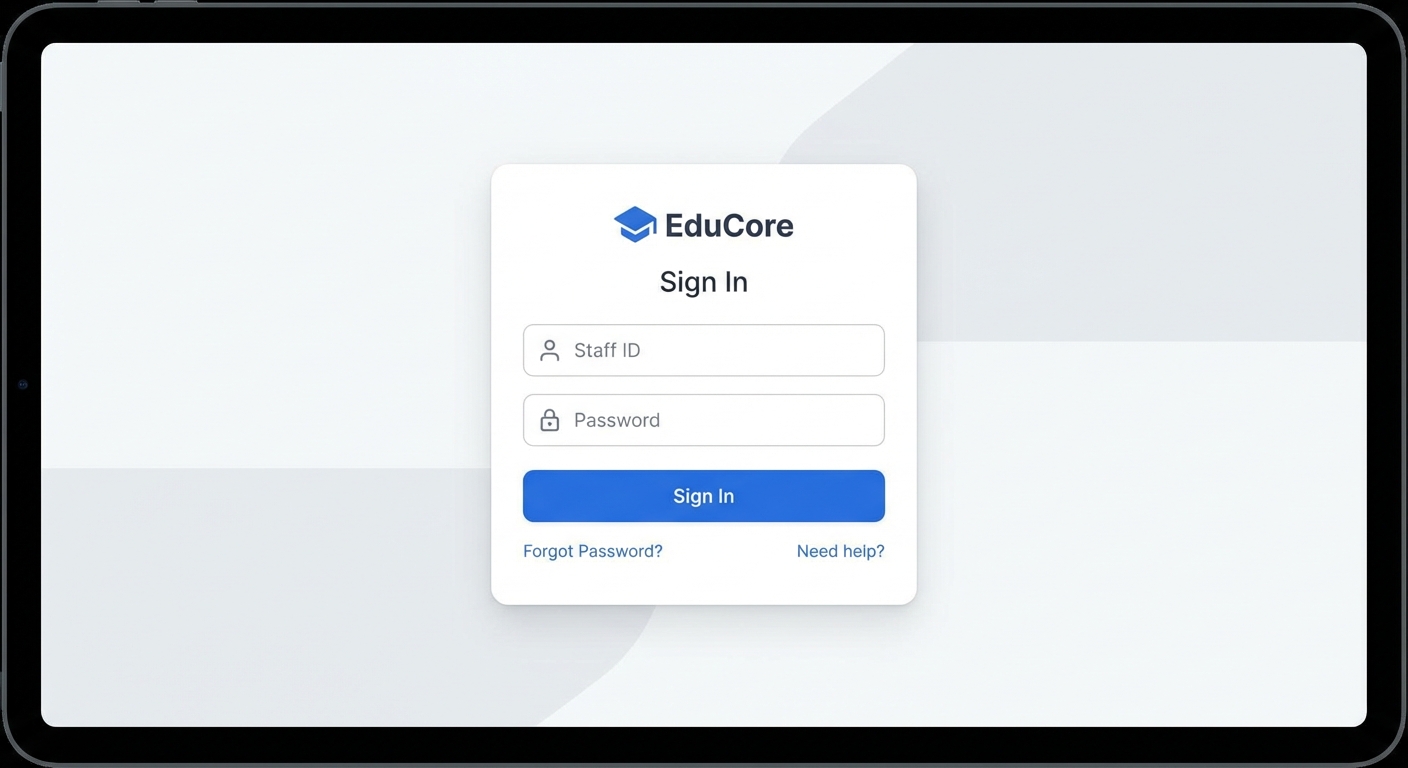
Step 1: Logging In
Open the Platform
Navigate to the MAPLES OSM evaluation portal URL provided by your institution. You'll see the sign-in page.
Enter Your Credentials
Some institutions use OTP-only login (no password required). In that case, you'll only need to enter your phone number.
Time-Based Access
Depending on your institution's configuration, login may be restricted to specific hours (e.g., 9 AM – 6 PM IST). If you try to log in outside your allowed window, you'll see a message like "Login is only available between 9:00 AM and 6:00 PM IST".
Contact your Controller of Examinations (COE) if you need access outside these hours.
Step 2: OTP Verification
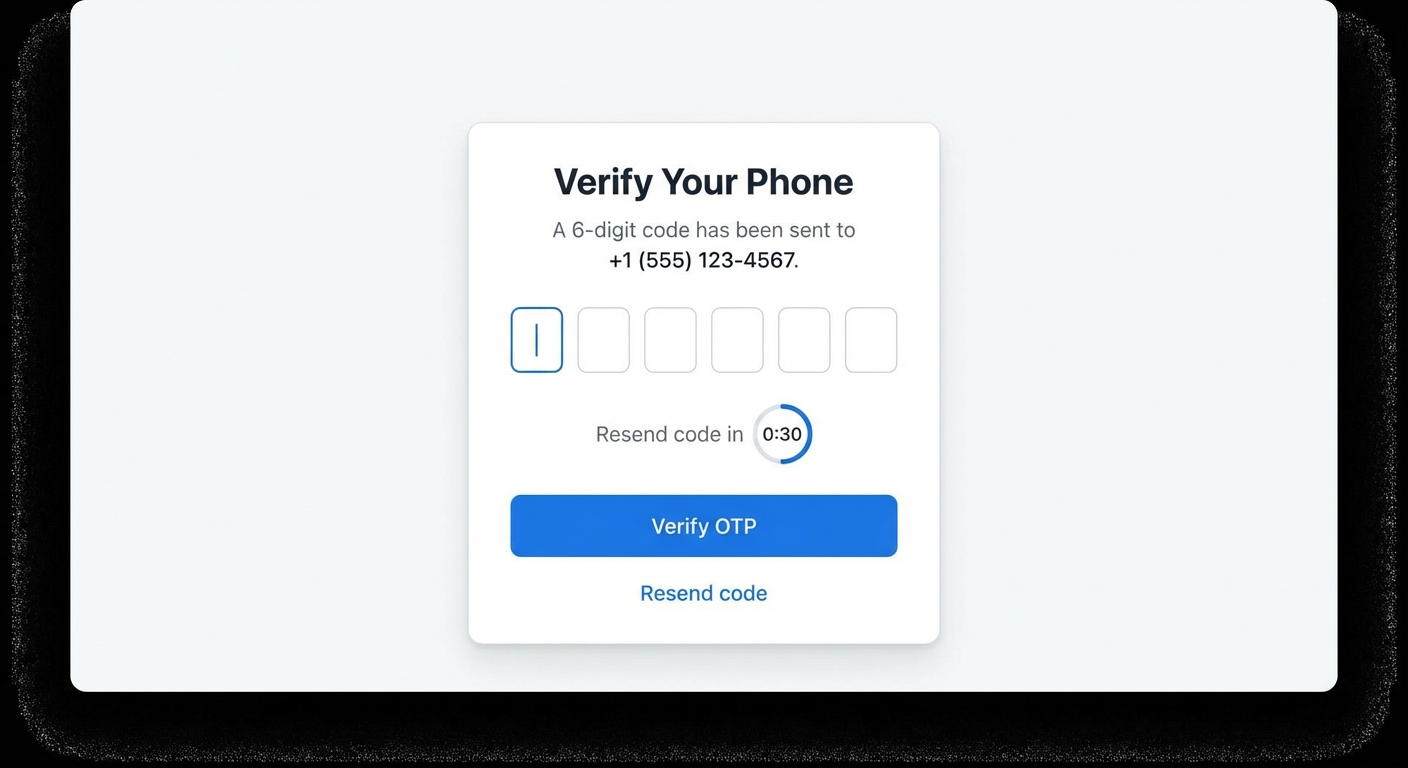
If your institution requires two-factor authentication, you'll be prompted to verify your identity with a One-Time Password after entering your credentials.
Entering the OTP
Resending the OTP
Didn't receive the code? Wait for the countdown timer to finish (30 seconds), then click "Resend OTP". A fresh OTP will be sent to your phone.
Make sure your registered phone number is correct and has network reception. If you continue to have issues, click "Back to Login" and try again, or use the "Request Support" button at the bottom of the page.
Troubleshooting Login Issues
Step 3: Understanding the Dashboard
After logging in, you'll be taken to your role-specific dashboard.
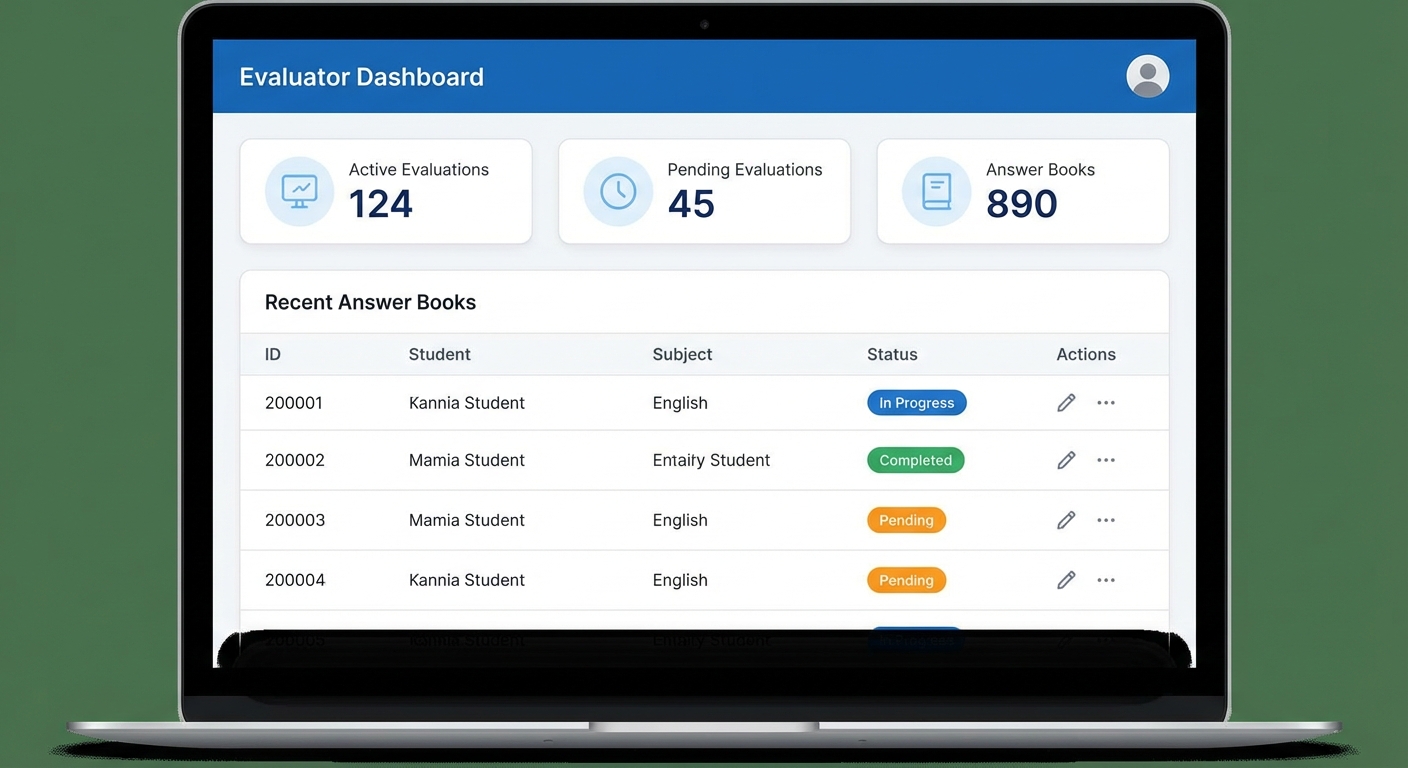
Evaluator Dashboard
As an evaluator, your dashboard is your command center. Here's what you'll see:
#### Subject Selector
At the top of the page, use the "Select Subject to Evaluate" dropdown to filter your view by subject. You can also click "All Subjects" to see everything at once. The dropdown is searchable — just start typing the subject name or code.
#### Statistics Overview
Three key stats cards give you an at-a-glance view:
#### Requesting a New Answer Book
If your institution allows self-service requests:
The system will assign an available answer book to you. If the button is disabled, hover over it to see why — you may have an active evaluation in progress, no answer books are available, you've reached your daily limit, or you've completed all your assigned evaluations.
#### Answer Books Table
Your answer books are listed in a table with the following columns:
| Column | Description |
|---|---|
| Answer Book ID | Unique identifier for the answer book |
| Subject Code | The subject code |
| Subject Name | Full subject name |
| QP Code | Question paper code |
| Status | Current status (see below) |
| Complete By | Deadline for evaluation |
| Last Modified | When you last worked on it |
| Marks | Total marks awarded |
| Action | Button to start, continue, or view |
#### Understanding Status Labels
| Status | Color | Meaning |
|---|---|---|
| Unevaluated | Gray | Not yet started |
| Started | Blue | In progress |
| Processing | Orange | Being processed |
| Completed | Green | Finished and submitted |
| Rejected | Red | Rejected by you |
| Malpractice | Red | Malpractice reported |
#### Action Buttons
#### Filtering and Searching
Use the Status dropdown to filter by Pending, Active, Completed, or All. You can also search by Answer Book ID using the search bar.
Moderator Dashboard
As a moderator, your dashboard focuses on verification:
You'll see a table of evaluators for your selected subject with columns for their name, assigned count, completed count, pending count, and whether verification is required. We'll cover the moderation workflow in detail in Part 3.
What's Next?
Now that you're logged in and familiar with the dashboard, head to Part 2: Evaluating Answer Sheets to learn how to evaluate answer sheets — including marking, navigating pages, rejecting papers, and reporting malpractice.
*This guide is part of a 3-part series:*
Related Reading
Ready to digitize your evaluation process?
See how MAPLES OSM can transform exam evaluation at your institution.