How to Use MAPLES OSM: Part 3 — Moderation & Verification
A guide for moderators on verifying evaluations, comparing evaluator marks, issuing warnings, reallocating workloads, and admin answer book assignment in MAPLES OSM.

Overview
Moderators play a critical role in MAPLES OSM — they verify that evaluators have marked answer sheets accurately and consistently. This guide covers the complete moderation workflow, from selecting evaluations to verify, through the verification process itself, to issuing warnings and managing workloads.
If you haven't read the earlier parts, start with Part 1: Getting Started for login and dashboard basics, and Part 2: Evaluating Answer Sheets to understand how evaluation works.
The Moderator Dashboard
After logging in as a moderator, your dashboard shows three key metrics:
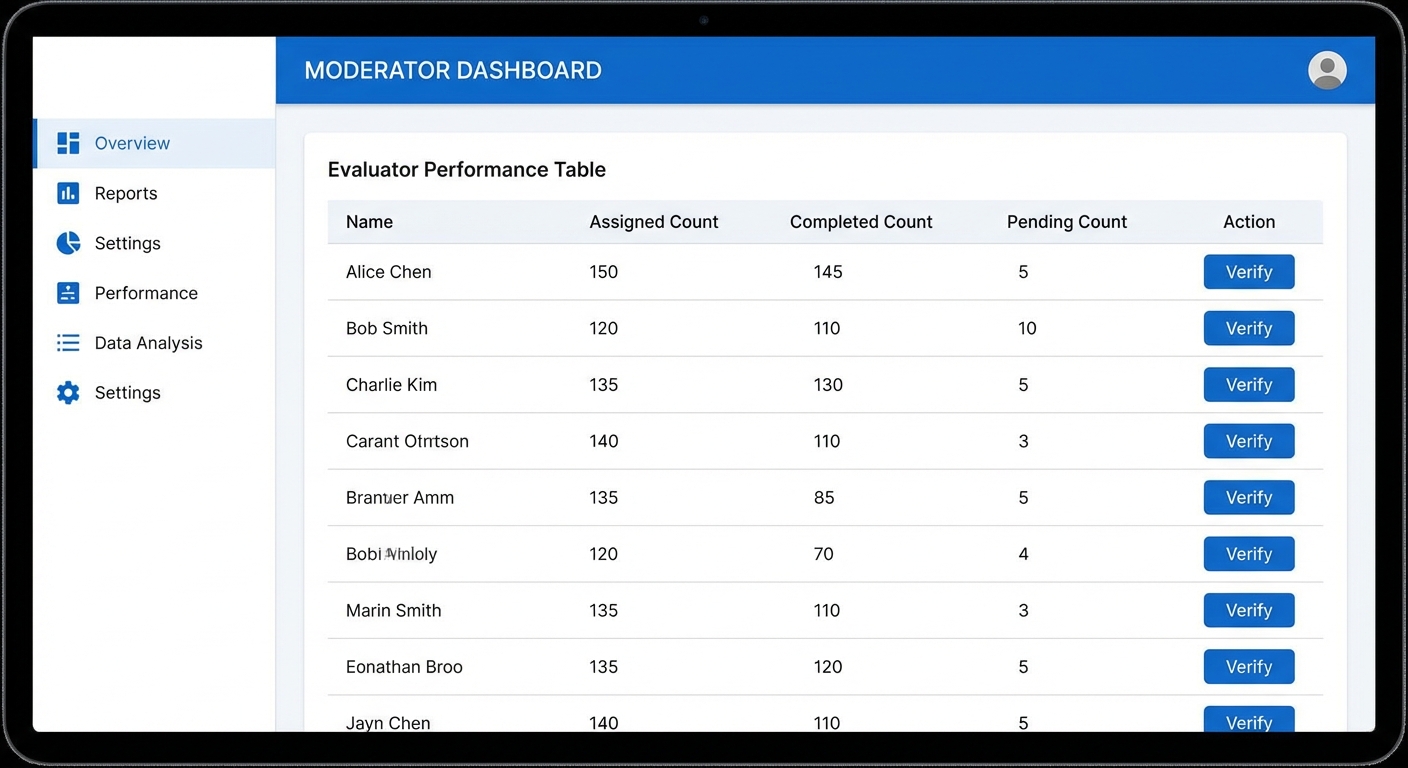
| Metric | Description |
|---|---|
| Evaluations to Verify | Number of completed evaluations waiting for your review |
| Warnings Issued | Total warnings you've given to evaluators |
| Total Subjects | Number of subjects under your supervision |
If your institution allows it, moderators can also evaluate answer books themselves. In that case, you'll have access to both the evaluator and moderator dashboards.
Viewing Evaluators
Select a subject from the dropdown to see the evaluators working on that subject. The evaluators table shows:
| Column | Description |
|---|---|
| Evaluator Name | The evaluator's name |
| Assigned | Total answer books assigned |
| Completed | Number finished |
| Pending | Number remaining |
| Verification Required? | Whether completed books need your review |
| Actions | Verify, View Details, or Reallocate buttons |
Action Buttons
The Verification Process
Step 1: Select Evaluations to Verify
Click "Verify" next to an evaluator's name. This opens the verification page showing all of that evaluator's completed answer books for the selected subject.
The verification page displays the evaluator name, subject, a progress bar showing completed vs total assigned, and the expected evaluation count.
Step 2: Choose an Answer Book
The verification table lists answer books with their ID, status (Pending Verification, In Progress, or Verified), marks awarded, last modified date, and action button.
Books are sorted with priority: In Progress (yours) then Pending then Verified then In Progress (others).
Action buttons change based on status:
Step 3: Verify the Evaluation
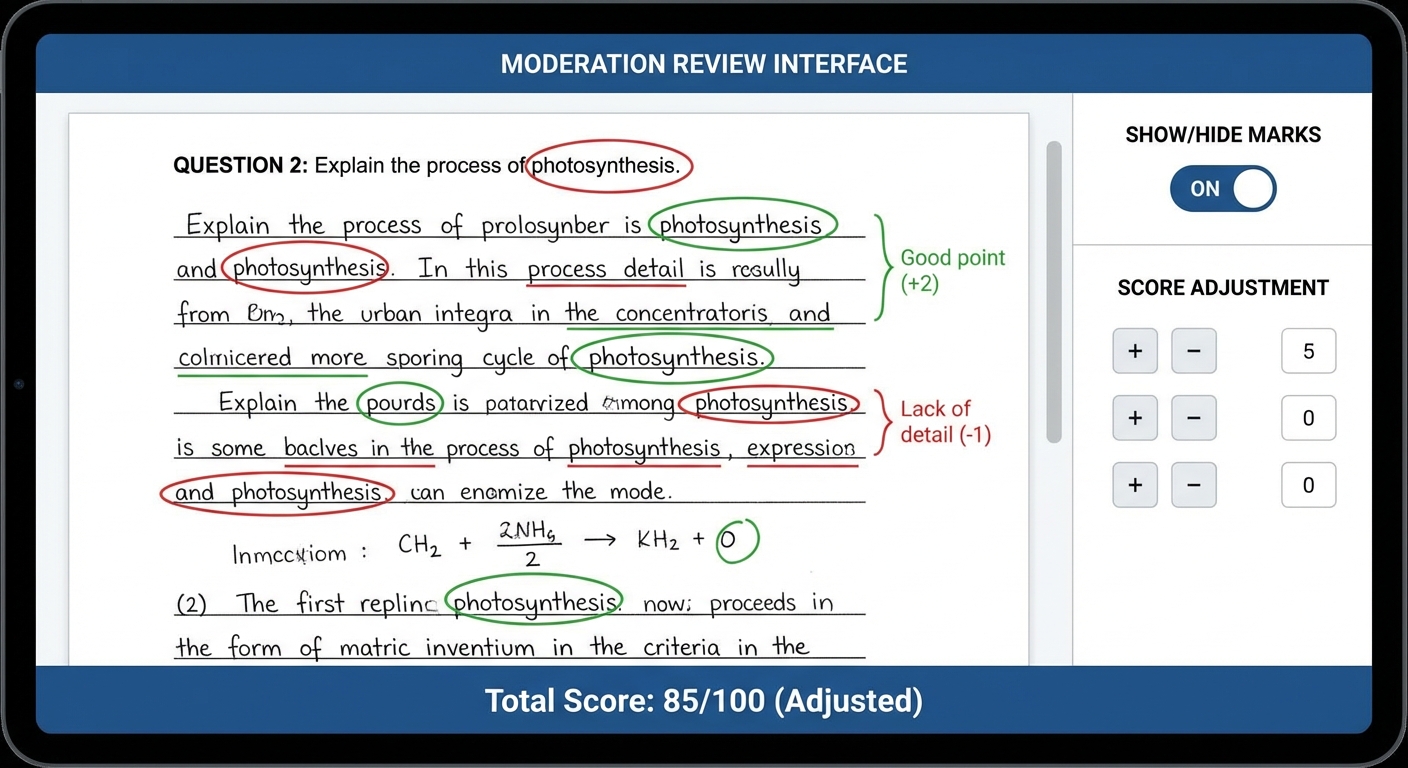
When you open an answer book for verification, you'll see the same evaluation interface from Part 2, with some key differences:
Step 4: Issue Warnings (If Needed)
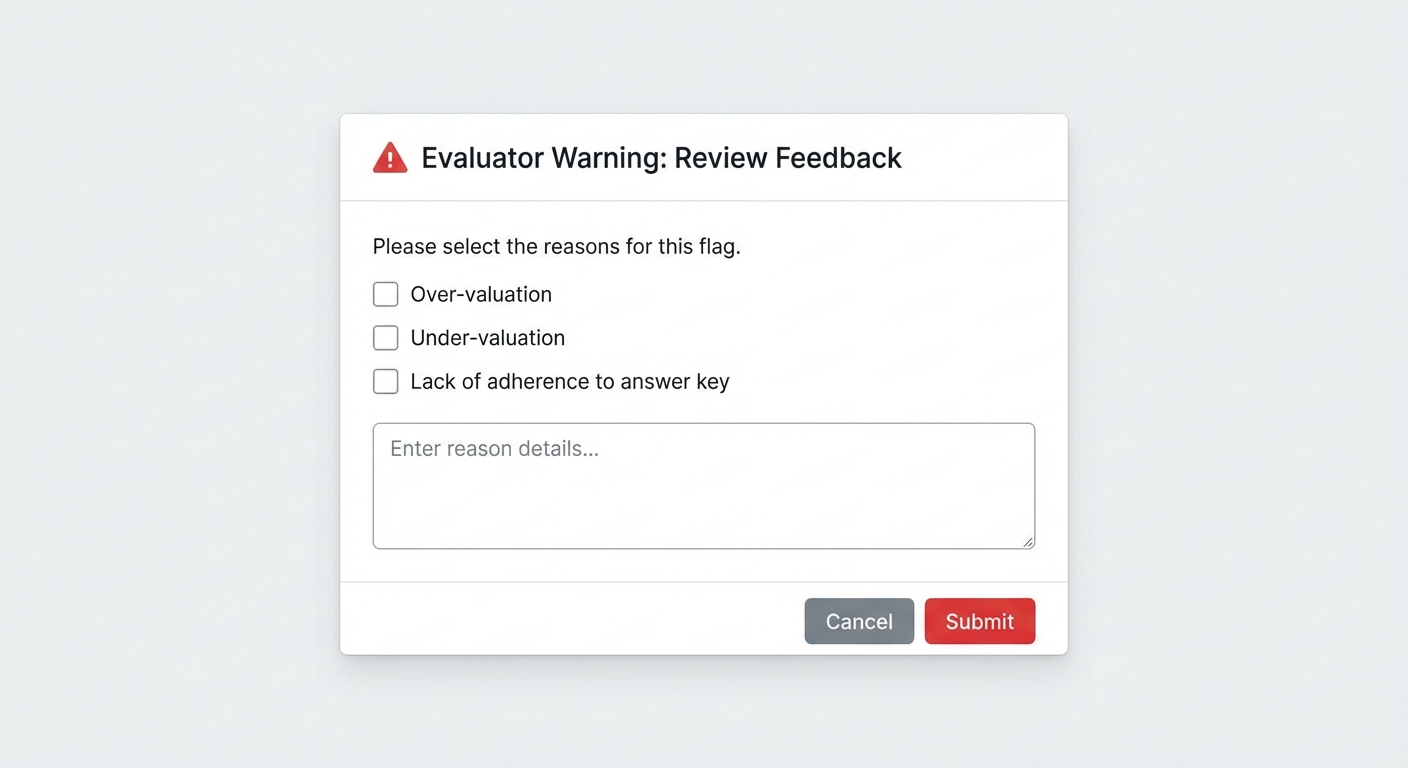
If you find issues with the evaluator's work, you can issue warnings during verification. Check the applicable warning types:
| Warning Type | Description |
|---|---|
| Over-valuation | Award of excessive marks — evaluator gave more marks than deserved |
| Under-valuation | Award of inadequate marks — evaluator gave fewer marks than deserved |
| Lack of adherence to answer key | Evaluator did not follow the official answer key |
| Inadequate knowledge on subject | Evaluator appears to lack sufficient subject knowledge |
| Any other warning | Custom warning with a text description |
Warnings are sent to the evaluator and appear as notifications (bell icon) in their dashboard. Multiple warnings may trigger administrative review.
Step 5: Complete Verification
Once you've reviewed the evaluation:
Or click "Back" to return to the verification list without completing.
Reallocating Workloads
As a moderator, you can redistribute evaluation workloads between evaluators within a subject. This is useful when an evaluator is unavailable or overloaded.
How to Reallocate
- From Evaluator — Select the evaluator to take work from.
- To Evaluator — Select the evaluator to give work to.
- Amount — Enter the number of evaluations to transfer.
- Reason — Select a reason: Evaluator unavailable, Workload rebalancing, Subject expertise mismatch, Evaluator request, Deadline adjustment, or Administrative correction.
You cannot reallocate more answer books than the "From" evaluator has remaining (unevaluated). The system validates this automatically.
Admin: Assigning Answer Books
Administrators have additional capabilities for managing answer book assignments.
The Admin Dashboard
The admin assignment page shows:
Assigning Books
Unassigning Books
Use bulk operations (select all + assign) to quickly distribute answer books across your evaluator team.
Best Practices for Moderators
Quick Reference: Evaluation Statuses
| Status | Meaning | Who Sets It |
|---|---|---|
| Unevaluated | Not yet started | System (default) |
| Started | Evaluator has begun marking | Evaluator |
| Processing | Evaluation in progress | System |
| Completed | Evaluation submitted | Evaluator |
| Moderated | Verified and approved by moderator | Moderator |
| Revaluated | Re-evaluated after moderator review | System |
| Rejected | Evaluator rejected the answer book | Evaluator |
| Malpractice | Malpractice reported | Evaluator |
Summary
MAPLES OSM streamlines the entire answer sheet evaluation process:
The platform eliminates the need for physical evaluation camps, reduces errors through digital tracking, and provides complete transparency with audit trails for every mark, warning, and verification.
*This guide is part of a 3-part series:*
Have questions? Contact your institution's Controller of Examinations (COE) or reach out through the in-app support chat.
Related Reading
Ready to digitize your evaluation process?
See how MAPLES OSM can transform exam evaluation at your institution.