How to Set Up a High-Speed Answer Sheet Scanning Station
Step-by-step guide to setting up an answer sheet scanning station for onscreen marking. Covers hardware, software, workflow, and best practices for scanning 50+ booklets per batch.
Why Scanning Matters
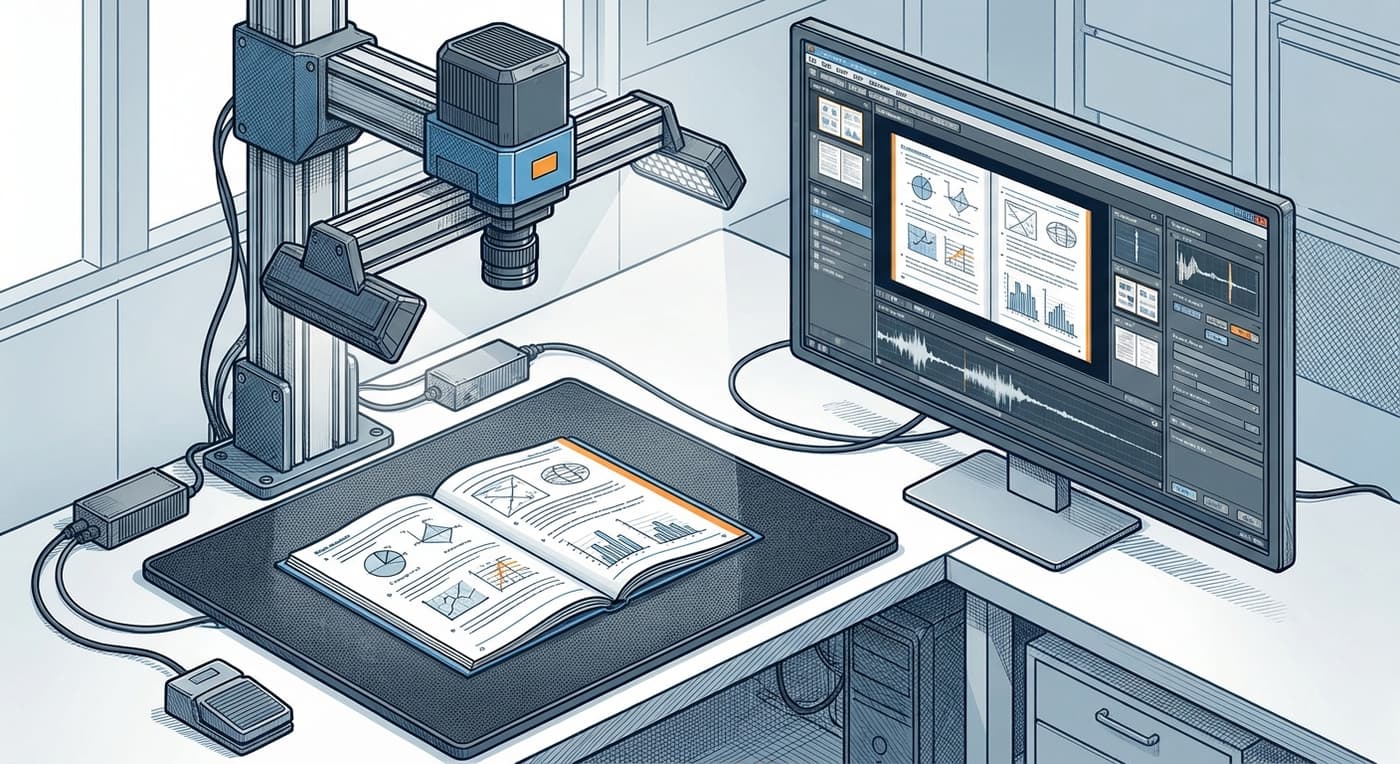
The scanning stage is the foundation of any onscreen marking system. Poor quality scans lead to QC rejections, evaluator complaints, and wasted time. A well-designed scanning station can process a 32-page answer booklet in under 2 minutes with consistent, high-quality output.
This guide covers how to set up a scanning station using an overhead camera approach — the same method used by MAPLES OSM's MapleScan system, which has processed 16 million+ pages across 5,00,000+ answer books.
Hardware Requirements
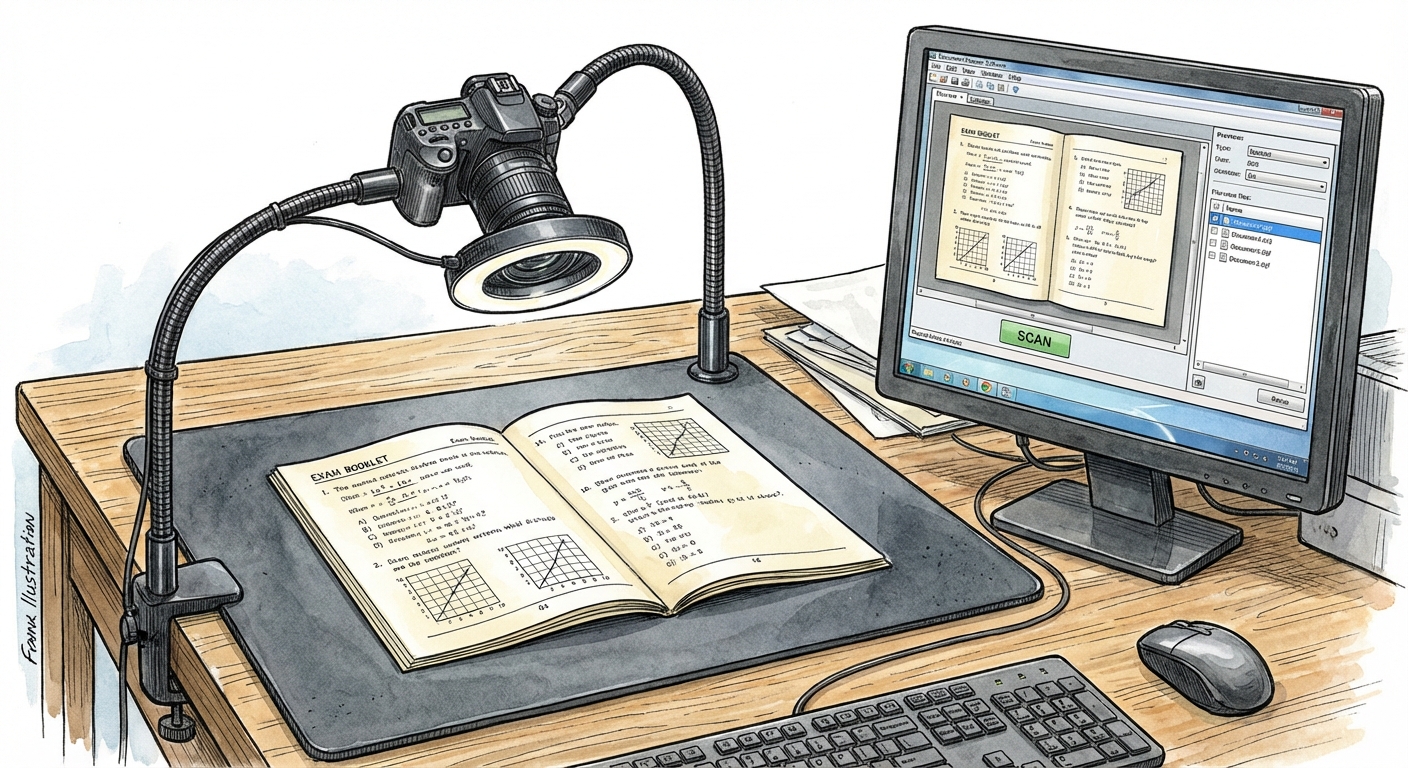
You don't need expensive specialized scanners. Here's what you need:
Camera
Scanning Surface
Computer
Optional
Total cost per station: approximately ₹8,000-15,000 (excluding the computer)
Software Setup
Modern scanning systems like MapleScan run entirely in the browser — no software installation required. The scanning operator opens a web URL, selects their camera, and starts scanning.
Key Software Features to Look For
Scanning Workflow
Before You Start
The Scanning Process
Step 1: Open the first booklet
Place the open booklet face-up on the dark mat, with the cover page (QR codes visible) facing the camera.
Step 2: First capture — QR detection
The system reads both QR codes on the first page:
The batch manifest is loaded automatically, and the system tracks how many booklets in the batch have been scanned.
Step 3: Flip and capture pages
Turn the pages one by one. In auto-capture mode, the system detects the motion sequence:
In manual mode, press Space to capture each page.
Step 4: Barcode validation
For pages 3-32, the system reads the Code128 barcode on each page and validates it against the expected sequence. If a page is out of order or missing, the system alerts the operator immediately.
Step 5: Complete the booklet
Press Enter when all pages are scanned. The system verifies the page count (32/32) and moves to the next booklet.
Keyboard Shortcuts for Maximum Speed
| Key | Action |
|---|---|
| Space | Capture current page |
| Enter | Complete booklet |
| ← → | Navigate between captured pages |
| Backspace | Delete last capture |
Quality Control After Scanning
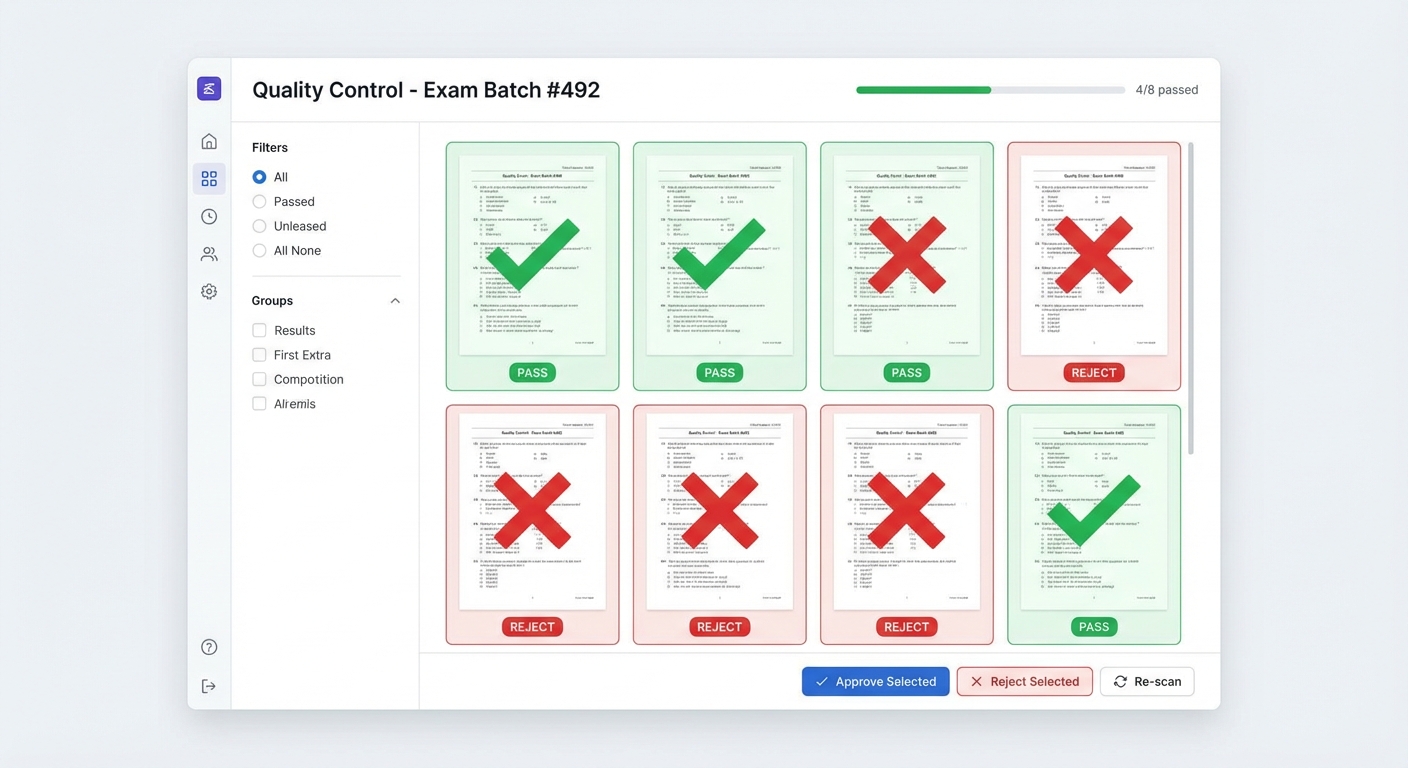
Not every scan will be perfect. A dedicated QC step catches issues before they reach evaluators.
QC Review Process
QC Best Practices
Scaling to Multiple Stations
For large-scale operations (5,000+ booklets), you'll need multiple scanning stations running concurrently.
Capacity Planning
Tips for Multi-Station Operations
Common Pitfalls and Solutions
| Problem | Solution |
|---|---|
| Blurry captures | Increase lighting, clean camera lens, ensure booklet is flat |
| Spine not detected | Adjust spine offset setting (-30% to +30%), use a higher-contrast mat |
| QR code not reading | Ensure QR sticker is flat and undamaged, improve lighting |
| Slow upload | Check internet bandwidth, verify dual storage is working |
| Pages out of order | Barcode validation will catch this — re-scan the flagged pages |
Conclusion
Setting up a scanning station is straightforward and affordable. With an overhead camera, a dark mat, and browser-based scanning software, any institution can digitize their answer booklets at speed. The key is a consistent workflow, proper lighting, and a QC review step to catch issues before they reach evaluators.
Once scanned, booklets flow directly into the evaluation pipeline — no manual file handling, no physical transport, no delays. The scanning station is the first step in transforming your institution's evaluation process from paper to digital.
Related Reading
Ready to digitize your evaluation process?
See how MAPLES OSM can transform exam evaluation at your institution.